
March 31, 2026

Find Support
Connect with Others
No one should face a melanoma diagnosis alone.
Building a strong network of support may be helpful for patients and caregivers going through a melanoma diagnosis. Once ready, you may even find yourself in a position to be the one who provides that support for others.
The MRF provides support programs and partners with support organizations in order to connect as many melanoma patients and caregivers as possible. Every melanoma patient and caregiver is different, so it is important to find a support resource and method that best fits you and your needs.
Join the Patient Forum!
The MRF’s online community of patients and caregivers provides a platform to ask questions, get information and network with others. Join the thousands of registered users to connect with others and learn from your peers!
Join a Support Group!
Ocular Melanoma Support Group
The MRF’s CURE OM initiative partners with Thomas Jefferson University Hospital’s Oncology Social Work Program to offer virtual support groups to the primary and metastatic ocular melanoma (OM) community. These support groups meet the first Wednesday of the month via a virtual platform. Licensed social workers facilitate the groups in a private and confidential setting.
This virtual support groups are offered by Colorado Retina, University of Denver Center for Oncology Psychology Excellence (COPE), and the MRF’s CURE OM initiative located in Denver, Colorado. All patients with ocular melanoma are invited to participate in this activity focused on providing support and exploring the emotional and mental aspects of the diagnosis and treatment.
The virtual meeting takes place the fourth Thursday of every month
To join a group or learn more, please contact education@melanoma.org.
CancerCare Support Groups
CancerCare offers a variety of support groups in a wide range of diseases, including melanoma Support groups are offered for patients, caregivers and young people, just to name a few

Get One-on-One Support!

The MRF partners with Imerman Angels to provide peer-to-peer support services to melanoma patients and caregivers. We invite you to register to be matched with a Mentor Angel, or to volunteer to be a Mentor Angel. The process of receiving a match takes just a few days.
GET SUPPORT – Talk to someone who has been there
GIVE SUPPORT – Become a mentor for someone else

The MRF partners with Patient True Talk, a patient-to-patient registry that allows patients and caregivers to search for others with a melanoma diagnosis or who have undergone similar treatments. The database makes matches based on diagnosis and treatment parameters, as well as geographical location. Patients and caregivers then have the ability to send secure messages directly to those whom are willing to share their experiences.
Cancer Support Community
The Cancer Support Community‘s Helpline (888-793-9355) is staffed by professional counselors and oncology resource specialists who are experienced in helping people with cancer and their caregivers. They are available to provide emotional support as well as information about living with cancer and referrals to local, regional and national resources. Their counselors and resource specialists can be reached by phone or live chat from Monday through Friday, 9 am – 9 pm ET. Supportive counseling is available in over 200 languages.
Ask the MRF Nurse!
Have a question about melanoma? Having trouble understanding your pathology report? Wondering how to better manage side effects?
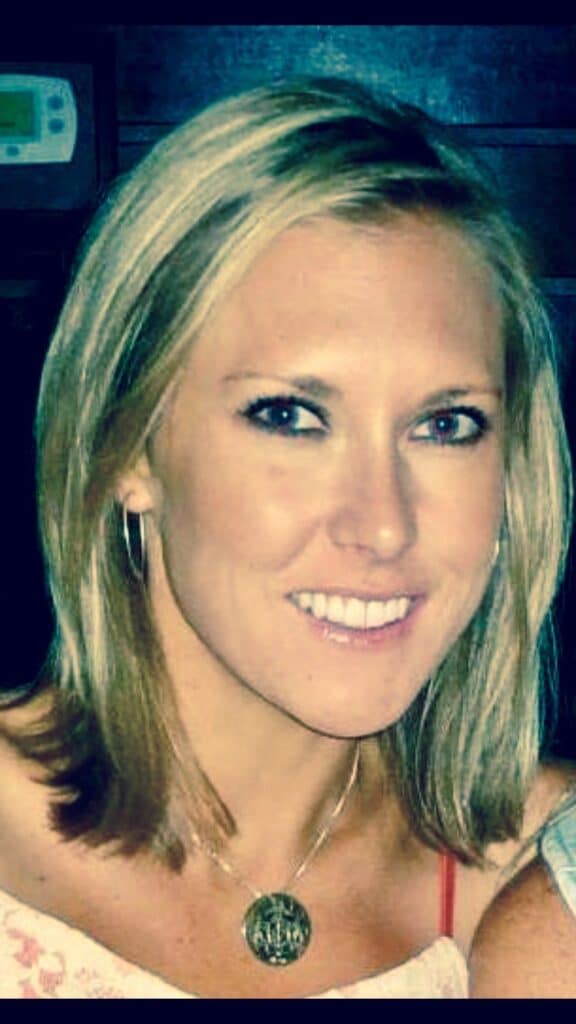
Introducing the MRF’s Nurse, Whitney Baylor! Whitney Baylor, MSN, RN, AONN-CG, joined the Melanoma Research Foundation team in December 2022. She graduated from The University of Colorado with a Master’s in Science of Nursing and has worked directly with melanoma patients for essentially her entire nursing career. Prior to joining the MRF, Whitney was the Nurse Navigator in the Melanoma Department at UC Health at Anschutz. She recently switched gears and went to work as a school RN in order to be able to spend more time with her family. Whitney’s passion for educating newly diagnosed melanoma patients along with being a point person for the additional support often needed during melanoma treatment has allowed Whitney to provide a positive experience for hundreds of melanoma patients in Colorado and the surrounding states for over ten years.
Mrs. Baylor can be reached at askanurse@melanoma.org.